Anslble playbook
什么是playbook
PlayBook即"剧本","兵书"之意,PlayBook是由以下部分组成的

play(hosts): 定义的是主机的角色。(主角还是配角)
book(tasks): 定义的是具体执行的任务。(角色的台词和动作)

playbook: 由一个或多个play(角色)组成,一个play(角色)可以包含多个task(台词,动作)。

简单理解为: 使用不同的模块完成一件事情
在Ansible中"剧本文件"是以yml结尾的文件。
在SaltStack中"剧本文件"是以sls结尾的文件。
但是语法,使用的都是yaml语法
playbook组成
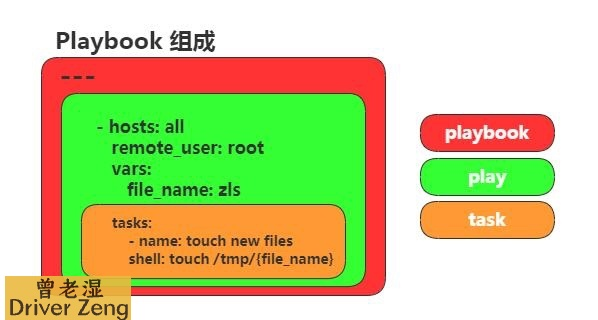
1.语法验证只能验证语法,不能验证你的逻辑
2.一般不使用-C
3.touch文件的时候,时间戳会变化,所以每次都是黄色
4.每次执行前先验证语法 ansible-playbook --syntax-check file.yml
playbook与ad-hoc区别
| 特点 |
PlayBook |
ad-hoc |
| 完整性 |
√ |
✘ |
| 持久性 |
√ |
✘ |
| 执行效率 |
低 |
高 |
| 变量 |
支持 |
不支持 |
| 耦合度 |
低 |
高 |
1.PlayBook功能比ad-hoc更全,是对ad-hoc的一种编排.
2.PlayBook能很好的控制先后执行顺序, 以及依赖关系.
3.PlayBook语法展现更加的直观.
4.playbook可以持久使用,ad-hoc无法持久使用.
playbook 的yml语法
| 语法 |
描述 |
| 缩进 |
YAML使用固定的缩进风格表示层级结构,每个缩进由两个空格组成, 不能使用TAB |
| 冒号 |
以冒号结尾的除外,其他所有冒号后面所有必须有空格 |
| 短横线 |
表示列表项,使用一个短横杠加一个空格,多个项使用同样的缩进级别作为同一列表 |
中国:
山东省:
- 青岛:
- 烟台:
黑龙江省:
- 哈尔滨:
-
美国:
加利福尼亚州:
- 网通一区
- 电信二区
只要不是以冒号结尾的行,冒号后面都要加空格
横线后面内容前一定要加空格
表示列表项,多个项使用同样的缩进级别作为同一列表
PlayBook部署httpd小练习
1.确定机器配置主机清单
[root@m01 ~]
[web_group]
web01 ansible_ssh_pass='1'
web02 ansible_ssh_pass='1'
[root@m01 ~]
web02 | SUCCESS => {
"ansible_facts": {
"discovered_interpreter_python": "/usr/bin/python"
},
"changed": false,
"ping": "pong"
}
web01 | SUCCESS => {
"ansible_facts": {
"discovered_interpreter_python": "/usr/bin/python"
},
"changed": false,
"ping": "pong"
}
2.创建目录
[root@m01 ~]
[root@m01 ~]
[root@m01 project]
[root@m01 project]
3.关闭防火墙
[root@m01 project]
[root@m01 httpd]
- hosts: web_group
tasks:
- name: Stop firewalld Server
systemd:
name: firewalld
state: stopped
enabled: no
4.安装httpd
[root@m01 httpd]
- hosts: web_group
tasks:
- name: Stop firewalld Server
systemd:
name: firewalld
state: stopped
enabled: no
- name: Install Httpd Server
yum:
name: httpd
state: present
5.启动httpd
[root@m01 httpd]
- hosts: web_group
tasks:
- name: Stop firewalld Server
systemd:
name: firewalld
state: stopped
enabled: no
- name: Install Httpd Server
yum:
name: httpd
state: present
- name: Start Httpd Server
systemd:
name: httpd
state: started
enabled: yes
6.创建站点文件
[root@m01 httpd]
- hosts: web_group
tasks:
- name: Stop firewalld Server
systemd:
name: firewalld
state: stopped
enabled: no
- name: Install Httpd Server
yum:
name: httpd
state: present
- name: Start Httpd Server
systemd:
name: httpd
state: started
enabled: yes
- name: Create index.html
copy:
content: test httpd index.html
dest: /var/www/html/index.html
owner: root
group: root
mode: 0755
7.验证语法测试
[root@m01 httpd]
playbook: httpd.yml
8.如果两个站点想不一样
[root@m01 httpd]
- hosts: web_group
tasks:
- name: Stop firewalld Server
systemd:
name: firewalld
state: stopped
enabled: no
- name: Install Httpd Server
yum:
name: httpd
state: present
- name: Start Httpd Server
systemd:
name: httpd
state: started
enabled: yes
- hosts: web01
tasks:
- name: Create web01 index.html
copy:
content: test web01 index.html
dest: /var/www/html/index.html
owner: root
group: root
mode: 0755
- hosts: web02
tasks:
- name: Create web02 index.html
copy:
content: test web02 index.html
dest: /var/www/html/index.html
owner: root
group: root
mode: 0755
PlayBook实战一:实现一个backup备份服务器的服务端和客户端的部署.
1.环境准备
| 主机名 |
wanIP |
lanIP |
服务 |
角色 |
| m01 |
10.0.0.61 |
172.16.1.61 |
Ansible |
控制端(导演) |
| backup |
10.0.0.41 |
172.16.1.41 |
rsync服务端 |
被控端(男一) |
| web01 |
10.0.0.7 |
172.16.1.7 |
rsync客户端 |
被控端(女二) |
| web02 |
10.0.0.8 |
172.16.1.8 |
rsync客户端 |
被控端(女二) |
2.配置主机清单
[root@m01 ~]
[web_group]
web01 ansible_ssh_pass='1'
web02 ansible_ssh_pass='1'
[backup_group]
backup ansible_ssh_pass='1'
[root@m01 ~]
10.0.0.7 web01
10.0.0.8 web02
10.0.0.41 backup
3.写剧本前准备
[root@m01 ~]
[root@m01 project]
[root@m01 project]
[root@m01 rsync]
uid = www
gid = www
port = 873
fake super = yes
use chroot = no
max connections = 200
timeout = 600
ignore errors
read only = false
list = false
auth users = rsync_backup
secrets file = /etc/rsync.passwd
log file = /var/log/rsyncd.log
[backup]
comment = welcome to oldboyedu backup!
path = /backup
4.编写剧本
0)停止防火墙
- hosts: backup_group
  tasks:
    - name: Stop firewalld
      systemd:
        name: firewalld
        state: stopped
        enabled: no
1)安装rsync
- hosts: backup_group
  tasks:
    - name: Install rsync Server
      yum:
        name: rsync
        state: present
2)配置rsync
    - name: config rsync
      copy:
        src: ./rsync.txt
        dest: /etc/rsyncd.conf
3)创建用户组
    - name: Create group
      group:
        name: www
        gid: 666
        state: present
4)创建用户
    - name: Create User
      user:
        name: www
        uid: 666
        group: www
        shell: /sbin/nologin
        create_home: false
5)创建密码文件并授权
    - name: Create password file
      copy:
        content: rsync_backup:123456
        dest: /etc/rsync.passwd
        owner: root
        group: root
        mode: 0600
6)创建模块的目录并授权
    - name: Crate rsync Dir
      file:
        path: /backup
        state: directory
        owner: www
        group: www
        mode: 0755
7)启动rsync
    - name: Start rsync Server
      systemd:
        name: rsyncd
        state: started
        enabled: yes
8)客户端安装rsync
- hosts: web_group
  tasks:
    - name: Install Rsync Server
      yum:
        name: rsync
        state: present
9)配置客户端密码文件授权
    - name: Create client Password File
      copy:
        content: 123456
        dest: /etc/rsync.passwd
        mode: 0600
10)完整的剧本
[root@m01 rsync]
- hosts: backup_group
tasks:
- name: Stop firewalld
systemd:
name: firewalld
state: stopped
enabled: no
- name: Install rsync Server
yum:
name: rsync
state: present
- name: config rsync
copy:
src: ./rsync.txt
dest: /etc/rsyncd.conf
- name: Create Group
group:
name: www
gid: 666
state: present
- name: Create User
user:
name: www
uid: 666
group: www
shell: /sbin/nologin
create_home: false
- name: Create password file
copy:
content: rsync_backup:123456
dest: /etc/rsync.passwd
owner: root
group: root
mode: 0600
- name: Crate rsync Dir
file:
path: /backup
state: directory
owner: www
group: www
mode: 0755
- name: Start rsync Server
systemd:
name: rsyncd
state: started
enabled: yes
- hosts: web_group
tasks:
- name: Install Rsync Server
yum:
name: rsync
state: present
- name: Create client Password File
copy:
content: 123456
dest: /etc/rsync.passwd
mode: 0600
PlayBook实战二:部署NFS服务,NFS服务端,敞开大门提供挂载点给web01和web02
1. 环境准备
| 主机名 |
wanIP |
lanIP |
服务 |
角色 |
| m01 |
10.0.0.61 |
172.16.1.61 |
Ansible |
控制端(导演) |
| nfs |
10.0.0.31 |
172.16.1.31 |
nfs服务端 |
被控端(男一) |
| web01 |
10.0.0.7 |
172.16.1.7 |
nfs客户端 |
被控端(女二) |
| web02 |
10.0.0.8 |
172.16.1.8 |
nfs客户端 |
被控端(女二) |
2.配置主机清单
[root@m01 ~]
[web_group]
web01 ansible_ssh_pass='1'
web02 ansible_ssh_pass='1'
[backup_group]
backup ansible_ssh_pass='1'
[nfs_group]
nfs ansible_ssh_pass='1'
[root@m01 ~]
10.0.0.7 web01
10.0.0.8 web02
10.0.0.41 backup
10.0.0.31 nfs
编写剧本
0)停止防火墙
[root@m01 ~]
[root@m01 project]
[root@m01 project]
[root@m01 nfs]
- hosts: nfs_group
tasks:
- name: Stop firewalld
systemd:
name: firewalld
state: stopped
enabled: no
1)安装NFS
    - name: Install nfs Server
      yum:
        name: nfs-utils
        state: present
2)配置NFS
    - name: Config nfs
      copy:
        content: /data 172.16.1.0/24(rw,sync,all_squash,anonuid=666,anongid=666)
        dest: /etc/exports
3)创建用户组
    - name: Create Group
      group:
        name: www
        gid: 666
        state: present
4)创建用户
    - name: Create User
      user:
        name: www
        uid: 666
        group: www
        shell: /sbin/nologin
        create_home: false
5)创建目录
    - name: Create nfs Dir
      file:
        path: /data
        state: directory
        owner: www
        group: www
        mode: 0755
6)启动服务
    - name: Start nfs Server
      systemd:
        name: nfs
        state: started
        enabled: yes
7)客户端挂载
- hosts: web_group
  tasks:
    - name: Client Mount
      mount:
        path: /var/www/html/upload
        src: 172.16.1.31:/data
        fstype: nfs
        state: mounted
8)完整的剧本
[root@m01 nfs]
- hosts: nfs_group
tasks:
- name: Stop firewalld
systemd:
name: firewalld
state: stopped
enabled: no
- name: Install nfs Server
yum:
name: nfs-utils
state: present
- name: Config nfs
copy:
content: /data 172.16.1.0/24(rw,sync,all_squash,anonuid=666,anongid=666)
dest: /etc/exports
- name: Create Group
group:
name: www
gid: 666
state: present
- name: Create User
user:
name: www
uid: 666
group: www
shell: /sbin/nologin
create_home: false
- name: Create nfs Dir
file:
path: /data
state: directory
owner: www
group: www
mode: 0755
- name: Start nfs Server
systemd:
name: nfs
state: started
enabled: yes
- hosts: web_group
tasks:
- name: Client Mount
mount:
path: /var/www/html/upload
src: 172.16.1.31:/data
fstype: nfs
state: mounted