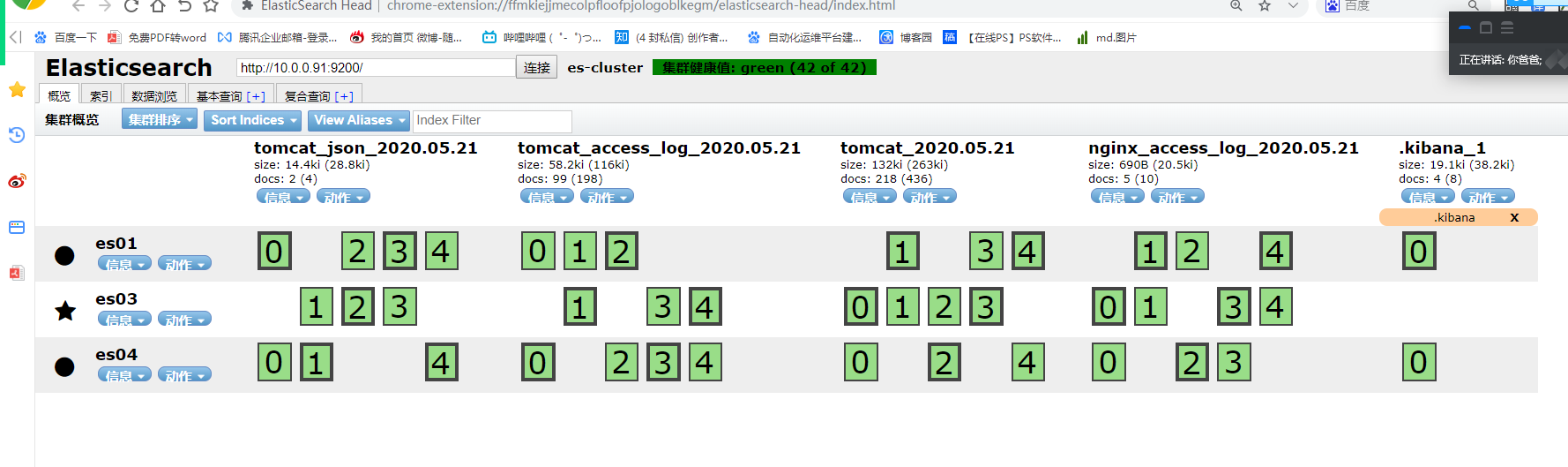
一、logstash的使用
1.logstash配置文件
[root@m01 ~]
path.config: /etc/logstash/conf.d
2.logstash收集日志文件到文件
1)配置logstash
[root@m01 conf.d]
input {
file {
type => "message-log"
path => "/var/log/messages"
start_position => "beginning"
}
}
output {
file {
path => "/tmp/message_%{+YYYY.MM.dd}.log"
}
}
[root@m01 ~]
3.logstash收集日志文件到ES
1)配置logstash
[root@m01 ~]
input {
file {
type => "message-log"
path => "/var/log/messages"
start_position => "beginning"
}
}
output {
elasticsearch {
hosts => ["10.0.0.91:9200"]
index => "test_es_%{+YYYY-MM-dd}"
}
}
4.logstash启动多实例
[root@m01 ~]
[root@m01 ~]
[root@m01 ~]
[root@m01 ~]
[root@m01 ~]
5.收集多个文件日志到文件测试
1)配置logstash
[root@m01 conf.d]
input {
file {
type => "message-log"
path => "/var/log/messages"
start_position => "beginning"
}
file {
type => "secure-log"
path => "/var/log/secure"
start_position => "beginning"
}
}
output {
if [type] == "message-log" {
file {
path => "/tmp/message_%{+YYYY.MM.dd}.log"
}
}
if [type] == "secure-log" {
file {
path => "/tmp/secure_%{+YYYY.MM.dd}.log"
}
}
}
2)启动
[root@m01 conf.d]
input {
file {
type => "message-log"
path => "/var/log/messages"
start_position => "beginning"
}
file {
type => "secure-log"
path => "/var/log/secure"
start_position => "beginning"
}
}
output {
elasticsearch {
hosts => ["10.0.0.91:9200"]
index => "%{type}_%{+YYYY-MM-dd}"
}
}
二、使用logstash收集tomcat日志
1.安装tomcat
2.配置logstash收集tomcat日志
修改方式:
1.修改tomcat日志为json格式
1)开发自己更改,通过程序代码,或者log4j
2)运维修改tomcat的server配置文件
2.通过Logstash其他模块来收集例:multiline多行匹配
1)配置
[root@m01 conf.d]
input {
file {
type => "tomcat-log"
path => "/usr/local/tomcat/logs/localhost_access_log.*.txt"
start_position => "beginning"
}
}
output {
elasticsearch {
hosts => ["10.0.0.91:9200"]
index => "tomcat_%{+YYYY.MM.dd}"
}
}
3.方法一:修改tomcat日志格式为 json 格式
1)修改格式
[root@m01 ~]
<!--Valve className="org.apache.catalina.valves.AccessLogValve" directory="logs"
prefix="localhost_access_log" suffix=".txt"
pattern="%h %l %u %t "%r" %s %b" /-->
<Valve className="org.apache.catalina.valves.AccessLogValve" directory="logs"
prefix="tomcat_access" suffix=".log"
pattern="{"clientip":"%h","ClientUser":"%l","authenticated":"%u","AccessTime":"%t","method":"%r","status":"%s","SendBytes":"%b","Query?string":"%q","partner":"%{Referer}i","AgentVersion":"%{User-Agent}i"}"/>
2)重启tomcat
[root@m01 ~]
Using CATALINA_BASE: /usr/local/tomcat
Using CATALINA_HOME: /usr/local/tomcat
Using CATALINA_TMPDIR: /usr/local/tomcat/temp
Using JRE_HOME: /usr
Using CLASSPATH: /usr/local/tomcat/bin/bootstrap.jar:/usr/local/tomcat/bin/tomcat-juli.jar
[root@m01 ~]
Using CATALINA_BASE: /usr/local/tomcat
Using CATALINA_HOME: /usr/local/tomcat
Using CATALINA_TMPDIR: /usr/local/tomcat/temp
Using JRE_HOME: /usr
Using CLASSPATH: /usr/local/tomcat/bin/bootstrap.jar:/usr/local/tomcat/bin/tomcat-juli.jar
Tomcat started.
3)查看新的日志
[root@m01 logs]
{"clientip":"10.0.0.1","ClientUser":"-","authenticated":"-","AccessTime":"[21/May/2020:11:46:09 +0800]","method":"GET /webdir/ HTTP/1.1","status":"304","SendBytes":"-","Query?string":"","partner":"-","AgentVersion":"Mozilla/5.0 (Windows NT 10.0; WOW64) AppleWebKit/537.36 (KHTML, like Gecko) Chrome/75.0.3770.100 Safari/537.36"}
{"clientip":"10.0.0.1","ClientUser":"-","authenticated":"-","AccessTime":"[21/May/2020:11:46:10 +0800]","method":"GET /favicon.ico HTTP/1.1","status":"200","SendBytes":"21630","Query?string":"","partner":"http://10.0.0.61:8080/webdir/","AgentVersion":"Mozilla/5.0 (Windows NT 10.0; WOW64) AppleWebKit/537.36 (KHTML, like Gecko) Chrome/75.0.3770.100 Safari/537.36"}
4)收集新的tomcat日志
[root@m01 ~]
input {
file {
type => "tomcat-log"
path => "/usr/local/tomcat/logs/tomcat_access.*.log"
start_position => "beginning"
}
}
output {
elasticsearch {
hosts => ["10.0.0.91:9200"]
index => "tomcat_json_%{+YYYY.MM.dd}"
}
}
4.方法二:通过Logstash其他模块来收集例:multiline多行匹配
1)测试匹配多行
[root@m01 ~]
input {
stdin {
codec => multiline {
pattern => "^\["
negate => true
what => "previous"
}
}
}
output {
stdout {
codec => json
}
}
2)启动
[root@m01 ~]
3)测试
123
qwe
asd
zxc
[
{"message":"123\nqwe\nasd\nzxc","@version":"1","tags":["multiline"],"host":"m01","@timestamp":"2020-05-21T04:06:03.483Z"}
5.将收集的日志写入ES
1)配置
[root@m01 ~]
input {
file {
path => "/usr/local/tomcat/logs/tomcat_access.*.log"
type => "tomcat_access_log"
start_position => "end"
codec => multiline {
pattern => "^\["
negate => true
what => "previous"
}
}
}
output {
elasticsearch {
hosts => ["10.0.0.91:9200"]
index => "tomcat_access_log_%{+YYYY.MM.dd}"
codec => "json"
}
}
2)启动、测试
三、使用logstash收集nginx日志
1.安装nginx
http {
... ...
log_format json '{"@timestamp":"$time_iso8601",'
'"host":"$server_addr",'
'"clientip":"$remote_addr",'
'"size":$body_bytes_sent,'
'"responsetime":$request_time,'
'"upstreamtime":"$upstream_response_time",'
'"upstreamhost":"$upstream_addr",'
'"http_host":"$host",'
'"url":"$uri",'
'"referer":"$http_referer",'
'"agent":"$http_user_agent",'
'"status":"$status"}';
access_log /var/log/nginx/access_json.log json;
... ...
}
2.配置收集nginx日志到ES
[root@m01 conf.d]
input {
file {
path => "/var/log/nginx/access_json.log"
type => "nginx_access_log"
start_position => "end"
}
}
output {
elasticsearch {
hosts => ["10.0.0.91:9200"]
index => "nginx_access_log_%{+YYYY.MM.dd}"
}
}